

Keyboard-centric setup
Most tiling window managers provide a first-class experience when working keyboard-only. Common examples are Hyprland for Linux and AeroSpace for macOS. Glide can provide the same workflow with a few tweaks to your system configuration.
Hotkeys to switch macOS Spaces
Section titled “Hotkeys to switch macOS Spaces”macOS provides an option to configure hotkeys to switch to specific Spaces. They are hidden, though. To configure them:
- Create several Spaces. As a rule of thumb, estimate your usual workflow, decide how many Spaces you need, and create them. They can be empty or contain any apps.
- Go to
System Settings->Keyboard->Keyboard Shortcuts->Mission Control. In theMission Controlsection, findSwitch to Desktop X. Enable all checkboxes and, optionally, set your own hotkeys.
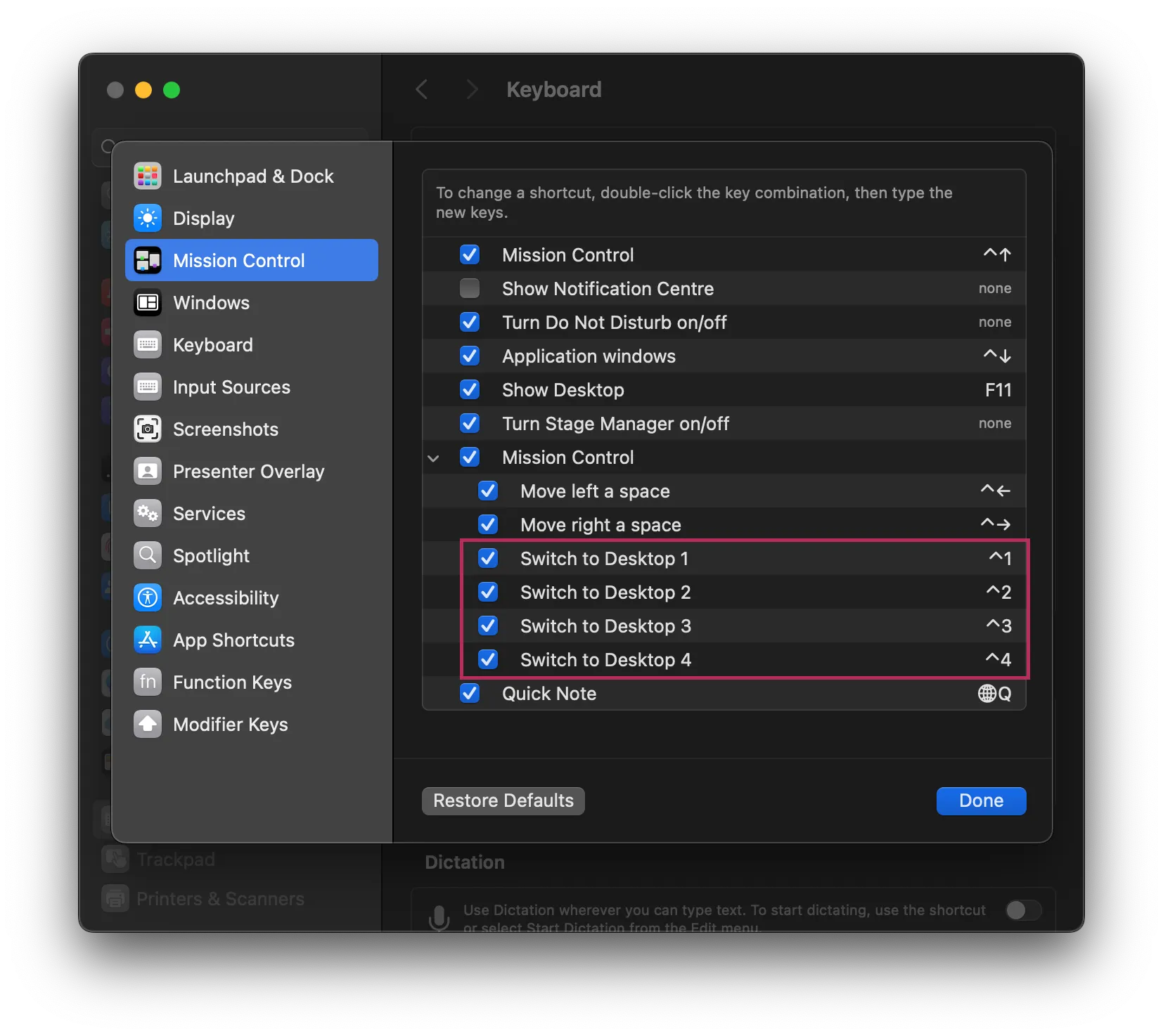
Now you can switch Spaces with the combination ^ + X (Control + X), where X is the target Space number.
Preserve Space order
Section titled “Preserve Space order”macOS rearranges your Spaces by default so the most recently used appears closer to the first (main) Space. This is counterintuitive if you arranged your Spaces in a specific order, like Space 1 for browser and mail, Space 2 for the terminal, Space 3 for the IDE, etc.
Luckily this can be disabled by unchecking System Settings -> Desktop & Dock -> Automatically rearrange Spaces based on most recent use.
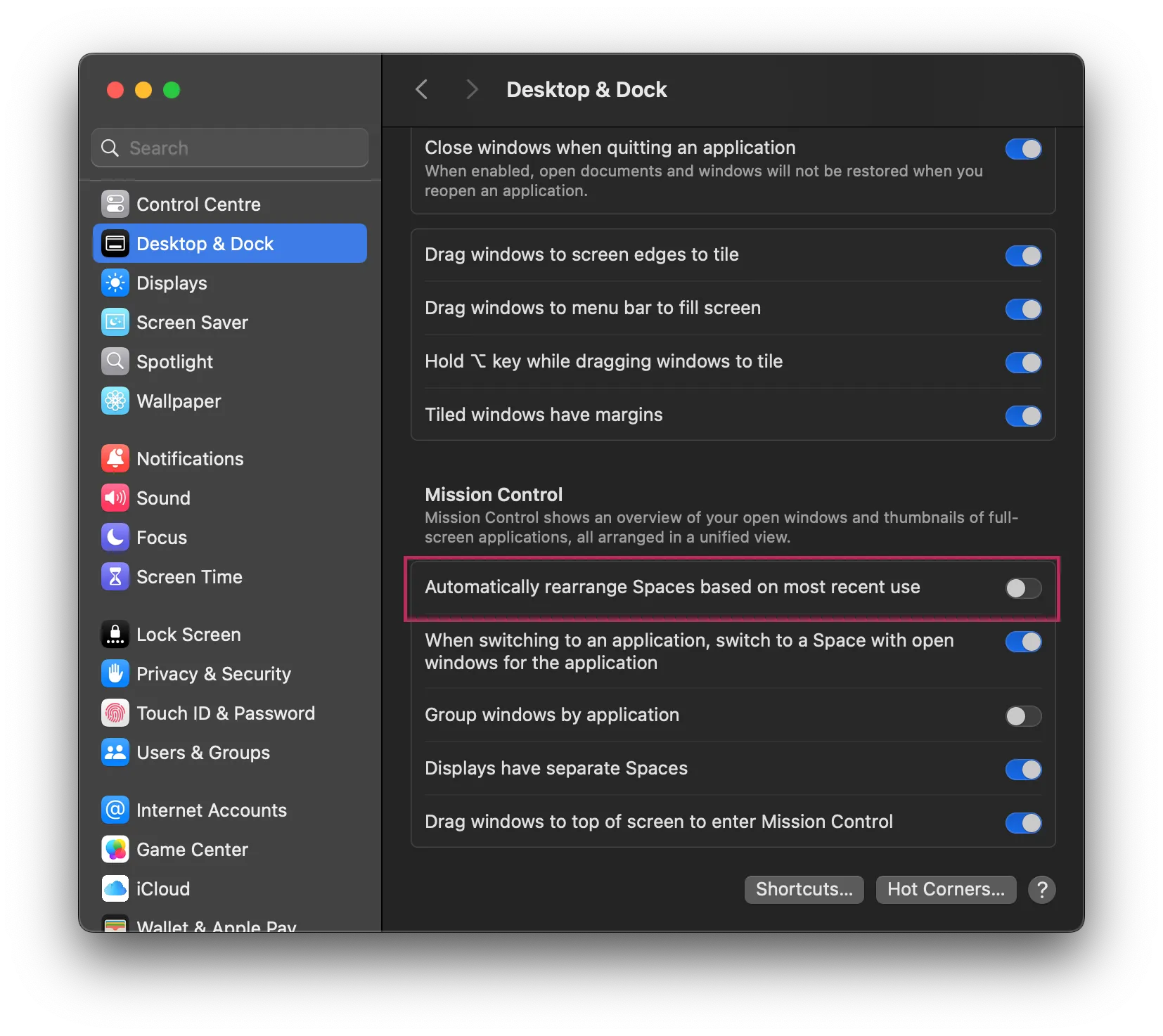
When unchecked, macOS preserves the order of your Spaces. For example, you can place your browser in Space 1 and the terminal in Space 2, and that order will stay the same regardless of workflow.
Glide neat options
Section titled “Glide neat options”By default Glide has to be activated on each Space individually. This can be changed:
[settings]
default_disable = false
You can enable space index to visualize your current Space. Note that this setting is experimental and might get changed or removed in the future.
[settings.experimental]
status_icon.space_index = true
Understanding tree navigation (ascend/descend)
Section titled “Understanding tree navigation (ascend/descend)”Glide organizes windows in a tree hierarchy. Understanding this hierarchy is key to advanced window management.
What are ascend and descend?
Section titled “What are ascend and descend?”The ascend and descend commands allow you to navigate up and down this tree hierarchy by changing your selection. Think of it like navigating directories in a file system - you can move up to parent nodes or down to child nodes.
Important: These commands change which node is selected (similar to move_focus), not the position of windows. The selected node affects what happens when you execute commands like move_node, split, or group.
How it works
Section titled “How it works”ascend(default Alt+A): Selects the parent node of your current selectiondescend(default Alt+D): Selects a child node of your current selection
Example use case
Section titled “Example use case”If you have created containers using the split command (default Alt+Backslash or Alt+Equal), you can use ascend/descend to navigate between the container and the windows within it. This allows you to:
- Select a container to perform operations on the entire group
- Move between different levels of nested containers
- Reorganize complex window layouts
For more details on containers and the tree structure, see the section on splitting and grouping in the configuration reference.